Jump to content
View in the app

A better way to browse. Learn more.

Anime Social

A full-screen app on your home screen with push notifications, badges and more.

To install this app on iOS and iPadOS
  1. Tap the Share icon in Safari
  2. Scroll the menu and tap Add to Home Screen.
  3. Tap Add in the top-right corner.
To install this app on Android
  1. Tap the 3-dot menu (⋮) in the top-right corner of the browser.
  2. Tap Add to Home screen or Install app.
  3. Confirm by tapping Install.
  • Owner

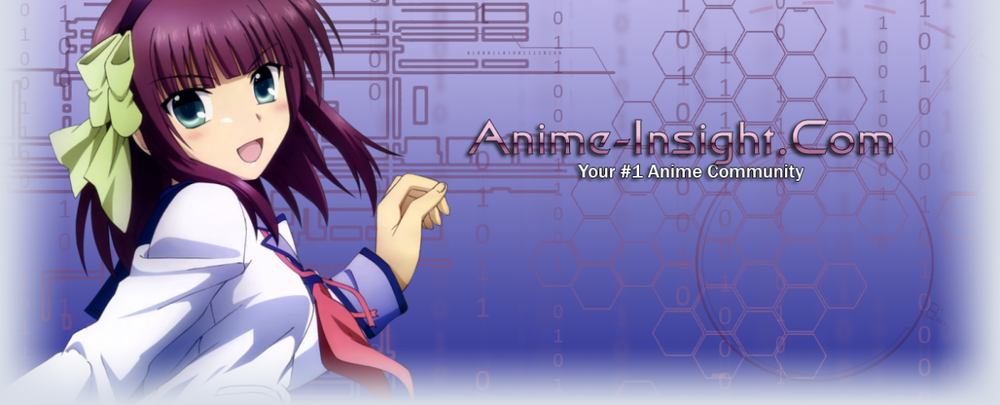
So I am currently cleaning out my photos folder and I came across some old Anime Insight logos!logo1.thumb.png.7d73a2c0f9b7212513e7c7237efb04d9.png

logo10.thumb.png.9c8614866550ced7c673df7a36416d8c.png

logo1.thumb.png.e8eb7f25ca29edc9640cebd13f333d3a.png

logo2.thumb.png.a56405d23b362c3bfc6afe4562acc8f1.png

LOGO3.thumb.png.7b7e93d186ae3ba89c5b4bafb37f740b.png


Yeah, they look big but were designed this way for a reason. 

Untitled_4.thumb.png.dc9e7440455ee67b2d8f8d968ab87e6f.png

Anime Insight had a rotating banner system at one point. so I made 8 logos for the community. Each with a different character and color theme. 

Featured Replies

No posts to show
Guest
Reply to this topic...

Recently Browsing 0

  • No registered users viewing this page.

Configure browser push notifications

Chrome (Android)
  1. Tap the lock icon next to the address bar.
  2. Tap Permissions → Notifications.
  3. Adjust your preference.
Chrome (Desktop)
  1. Click the padlock icon in the address bar.
  2. Select Site settings.
  3. Find Notifications and adjust your preference.